

![[For Seniors] Hidden Useful iPhone Features: Practical Trivia & Fun Facts Quiz](https://media.ragnet.co.jp/img/1200__png__https://www.studiorag.com/files/2025/07/15981edb87905bf59896934d9bbdc6cc.webp)

iPhone features you might think you know but actually don’t.
From basic operations to neat little tricks that make you go “Wow!”, we present an iPhone trivia quiz you can enjoy while you learn.
Every question is multiple choice with three options, making it easy for seniors to try, too.
Packed with tips on operations, handy uses, and surprising settings to help you get more out of your iPhone.
You might discover something new as you answer the quiz! It’s also great fun to enjoy together with friends and family.
- [For Seniors] Trivia Quiz & Fun Facts for Everyday Life
- [For Seniors] Super Amazing Trivia Quiz! Introducing Practical Tips for Everyday Life
- [For Seniors] Great for killing time! A fun three-choice trivia quiz
- [For Seniors] Lively two-choice trivia quiz. Handy to know and tidbits you'll want to share with others
- [For Seniors] Boost Your Knowledge! Fun Trivia Quiz
- [For Seniors] Trivia Multiple-Choice Quiz
- [For Seniors] Fun and Informative! Health Trivia Quiz
- For Seniors: Useful Trivia Questions! Introducing Fun Facts Quizzes You'll Want to Share
- [For Seniors] Fun and Informative Trivia Quiz Collection
- [For Seniors] Fun and Informative! Trivia and Quizzes Introduced
- [For Seniors] Surprising Facts! Multiple-Choice Trivia Quiz (4 Options)
- [For Seniors] Surprisingly Unknown! General Knowledge Quiz
- How much do you know? Trivia quiz for seniors that’s full of surprisingly unknown facts
[For Seniors] Hidden Useful iPhone Features: Informative Trivia & Fun Facts Quiz (1–10)
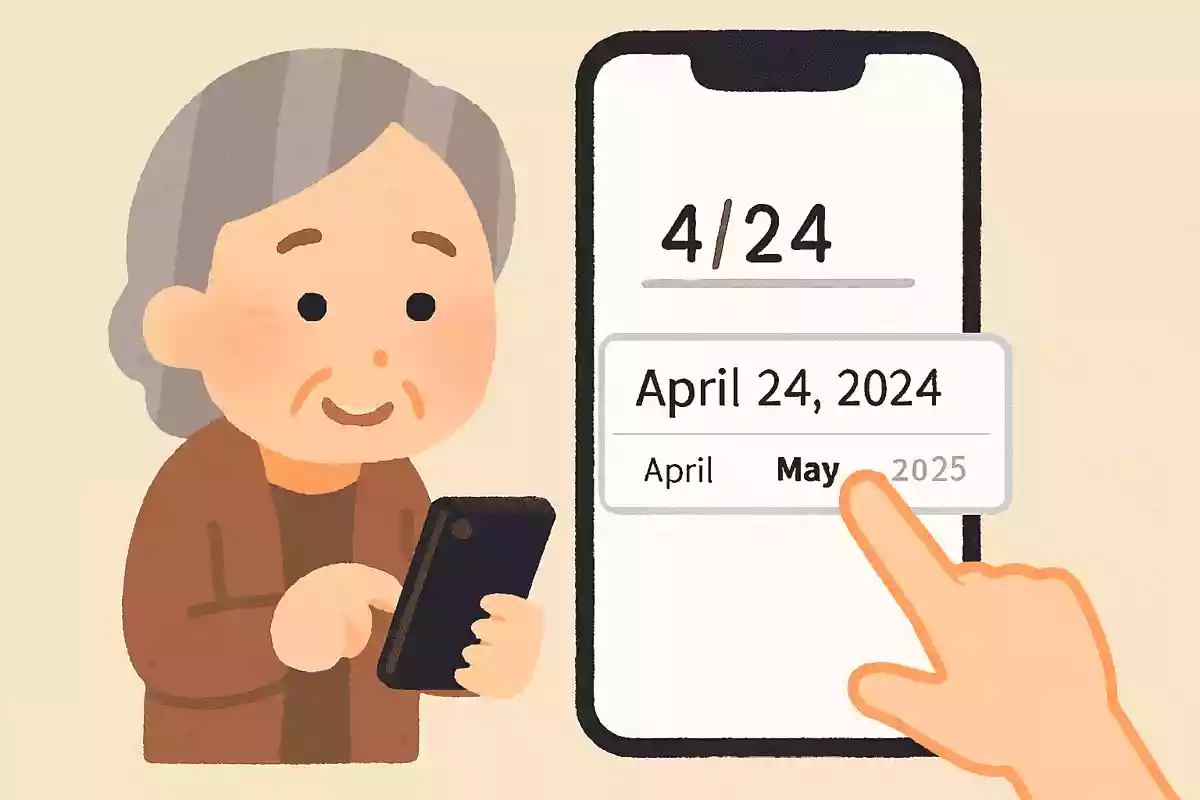
What’s an easy way to enter today’s date on an iPhone?
- Type “きょう” and convert it
- Open the calendar app
- Enter directly with numbers
See the answer
Type “きょう” and convert it
On an iPhone, if you type “きょう” on the keyboard and convert it, today’s date is automatically displayed. It’s a handy feature when you want to enter the date quickly. By the way, if you type “ことし” and convert it, it will automatically show the year in both the Gregorian calendar and the Japanese era.

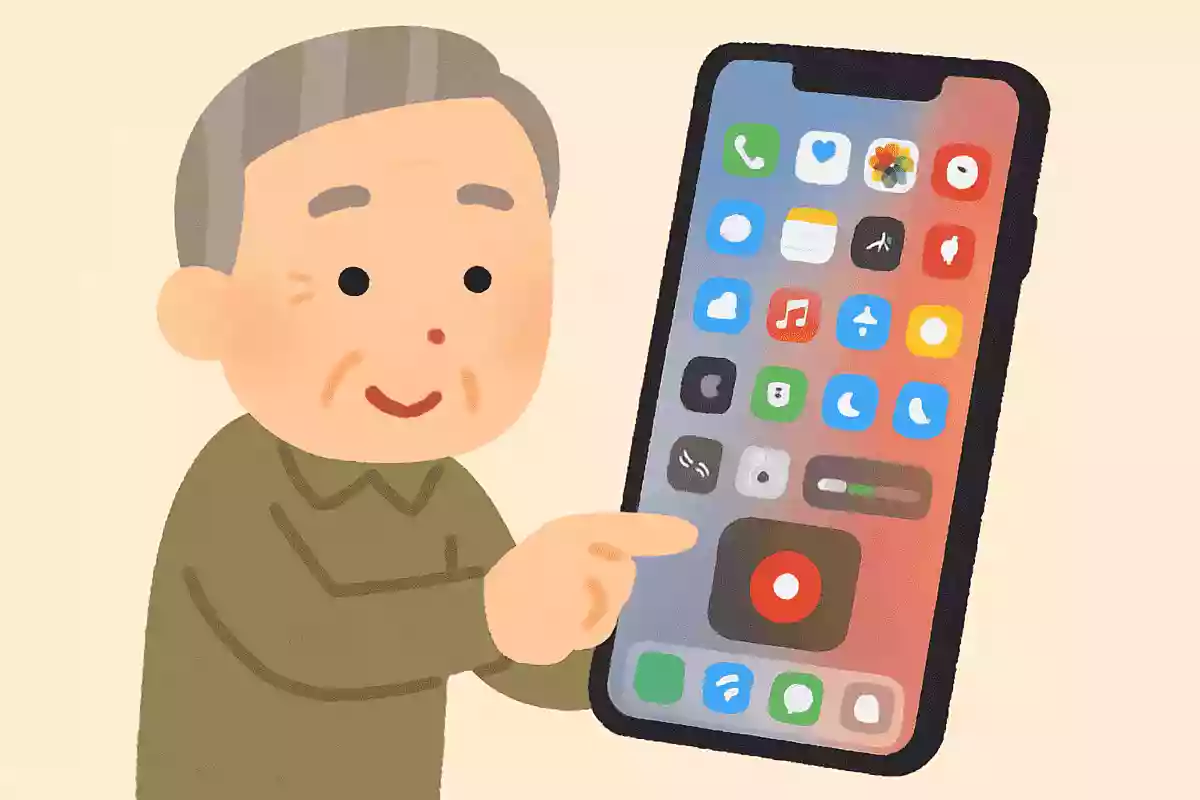
When you want to record the screen you’re operating on an iPhone, how can you record it?
- Record a video with the camera app
- Start Screen Recording from Control Center
- Ask Siri
See the answer
Start Screen Recording from Control Center
You can easily start recording your iPhone screen from the Screen Recording button in Control Center. If you add Screen Recording to Control Center in advance from Settings, you can start recording anytime with ease. To add it to Control Center, just go to Settings > Control Center > Customize Controls.
What is a convenient way to share a large number of photos from an iPhone to other iPhones or iPads without reducing image quality?

- Use AirDrop
- Use LINE’s image sending feature
- Attach and send photos by email
See the answer
Use AirDrop
With AirDrop, you can wirelessly transfer images and videos directly between iPhones and iPads, allowing you to send a large number of photos while preserving the original quality. Other methods may automatically compress image quality, so if you want to avoid degradation, AirDrop is the best option.
A “screenshot” lets you save the screen currently displayed on your iPhone. Which method is correct?
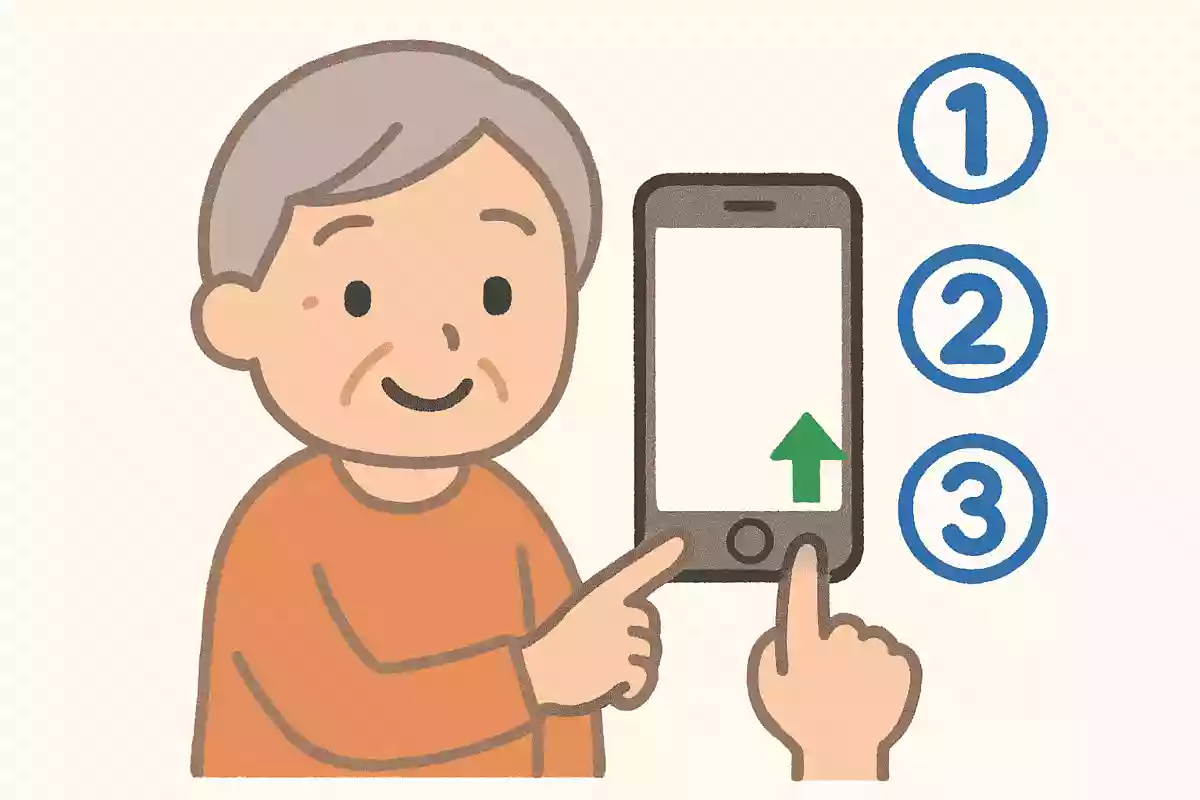
- Press the Home button and the Side button at the same time
- Press and hold the screen
- Turn off the power
See the answer
Press the Home button and the Side button at the same time
To take a screenshot on an iPhone, press the Home button and the Side button together, or press the Side button and the Volume Up button at the same time. The screen will flash white briefly, and the image will be saved.
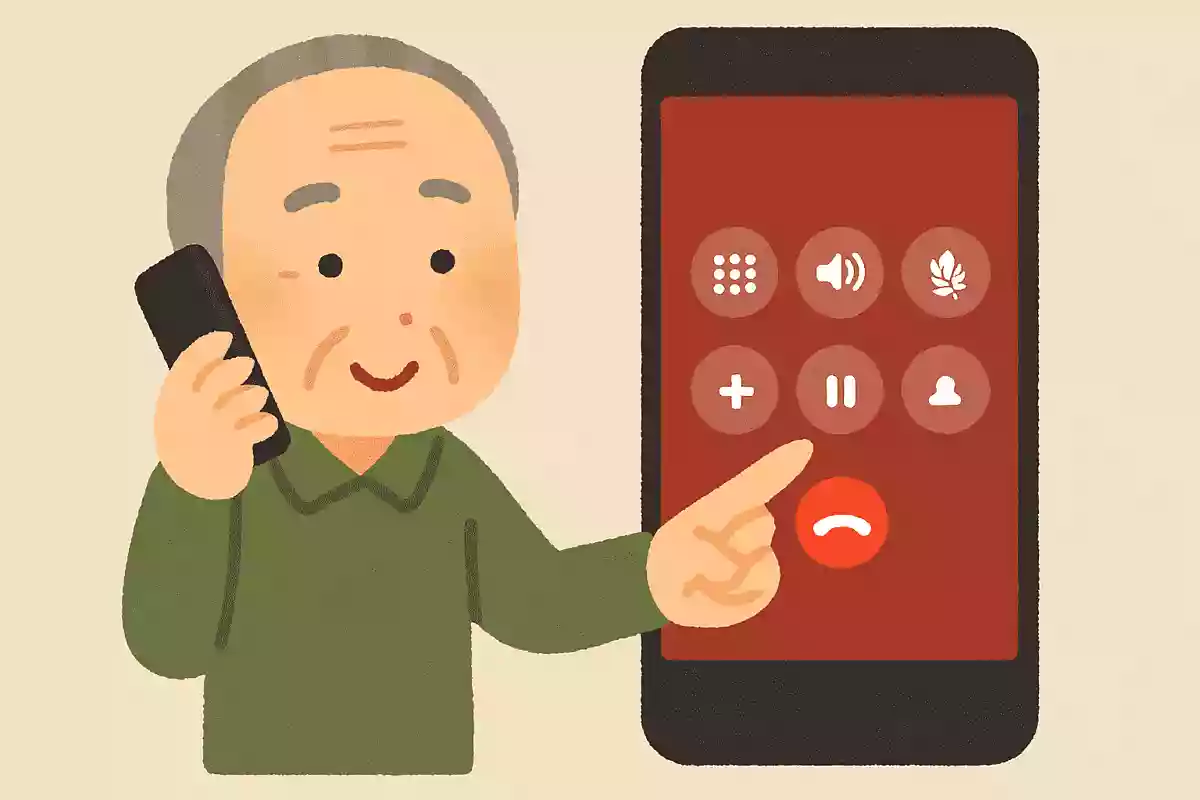
Which method lets you put a call on hold on an iPhone?
- Tap the speaker
- Tap Mute
- Long-press Mute on the call screen
See the answer
Long-press Mute on the call screen
To use the Hold feature during a call on iPhone, press and hold the Mute button. The Mute button will change to Hold, and the call will be placed on hold. While Speaker or Mute alone prevents your audio from being heard, Hold also notifies the other party that the call is on hold.
iPhones have a feature that reduces blue light to be easier on your eyes. Which of the following is the way to set it up?
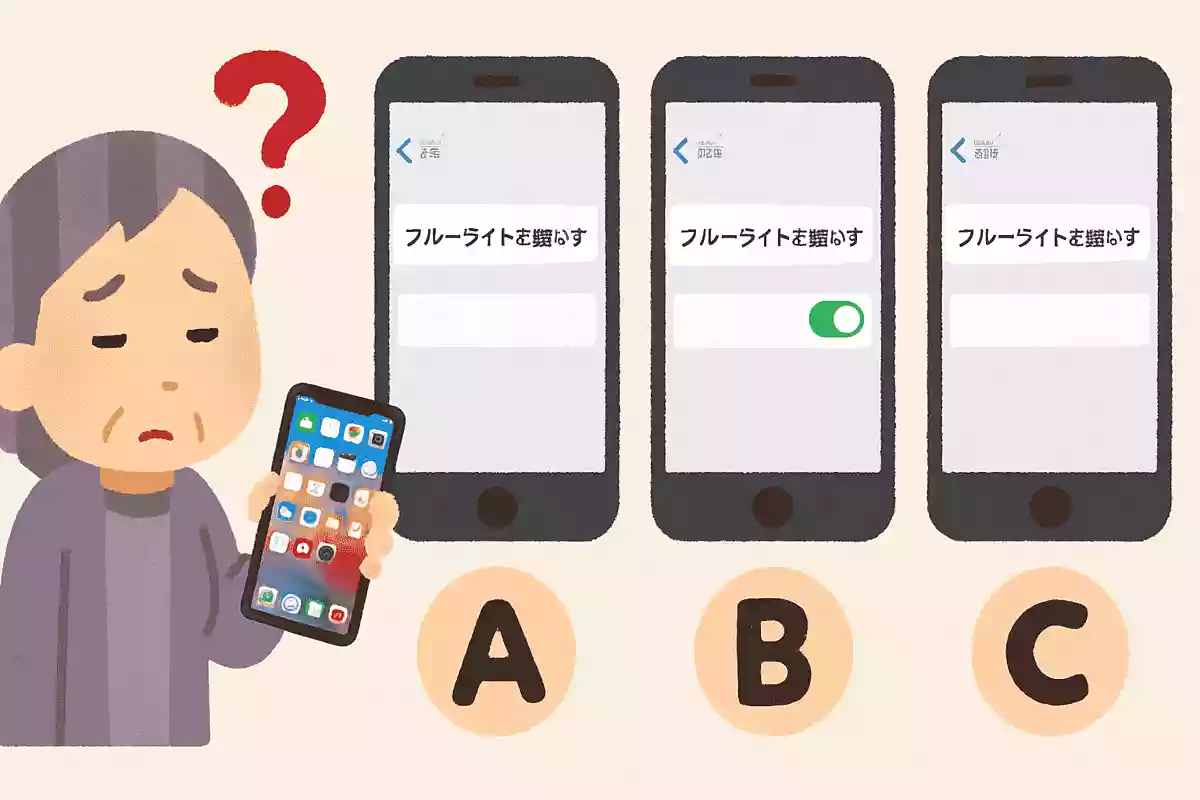
- Turn on Night Shift from Display & Brightness in the Settings app.
- Turn on Silent Mode from Control Center
- Launch the camera app and adjust the brightness
See the answer
Turn on Night Shift from Display & Brightness in the Settings app.
On an iPhone, you can reduce blue light by using the Night Shift feature in Settings > Display & Brightness. When Night Shift is enabled, the screen’s color temperature shifts warmer, which can help reduce eye strain at night.
Which convenient method can be used to quickly take a photo without unlocking the iPhone?
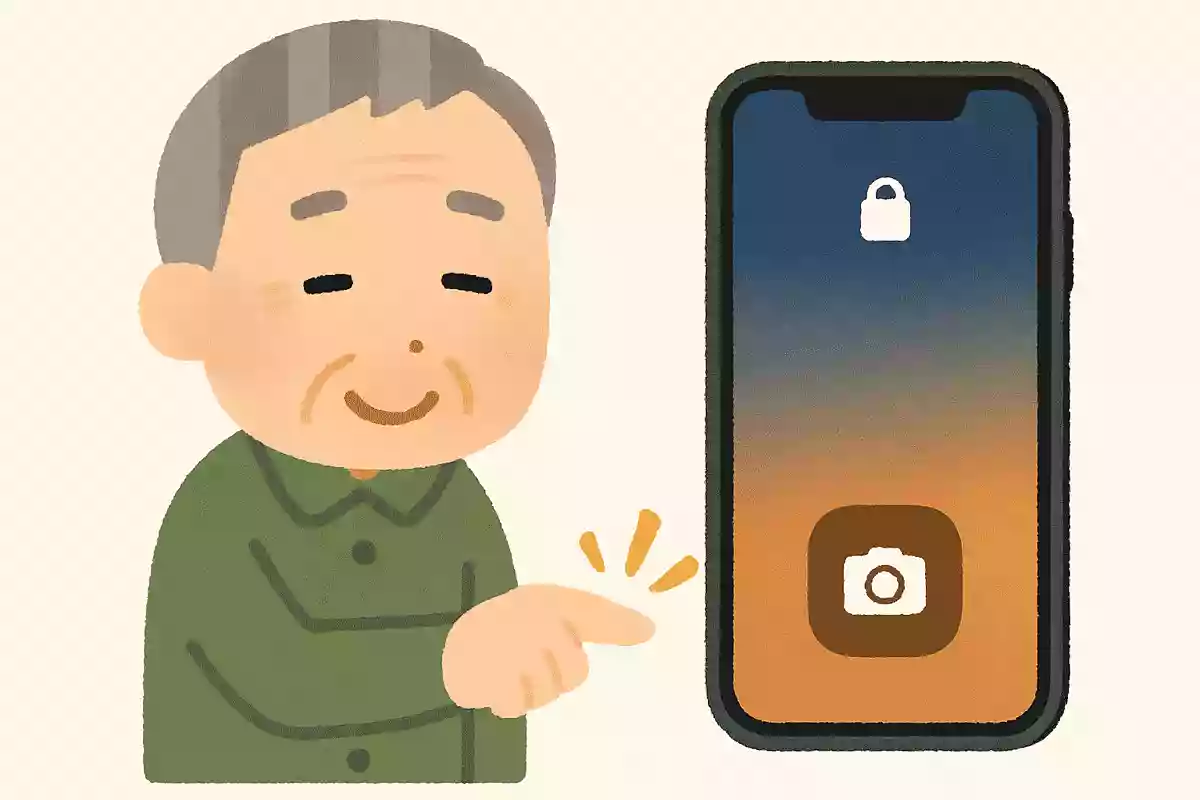
- Long-press the camera icon on the lock screen
- Press the power button twice
- Press the volume button three times
See the answer
Long-press the camera icon on the lock screen
If you press and hold the camera icon at the bottom-right of the iPhone lock screen, you can launch the camera immediately without unlocking. When there’s a sudden photo opportunity—like with kids or pets—you might miss the moment if you can’t open the camera quickly. Knowing this method helps you respond without panicking.