

![[Useful Features] iPhone Trivia and Tips You'll Want to Try](https://media.ragnet.co.jp/img/1200__png__https://www.studiorag.com/files/2025/05/d5330431ae73d91f045e7240383a1dd6.webp)
[Useful Features] iPhone Trivia and Tips You'll Want to Try

The iPhone is packed with handy features and little tricks that you may have heard of but don’t really know.
From smart ways to use predictive text to tips for fast charging, there are plenty of nuggets that add a touch of convenience to your everyday smartphone life! In this article, we’ll share general trivia and useful tidbits for iPhone users—little things that are nice to know.
We’ve gathered lots of topics to make your iPhone life more stylish, more fun, and more convenient.
You’re sure to discover something that will make you say, “Wow, I didn’t know that!”
[Useful Features] iPhone Trivia & Fun Facts That’ll Make You Want to Try Them (1–10)
You can charge it quickly by turning on airplane mode.
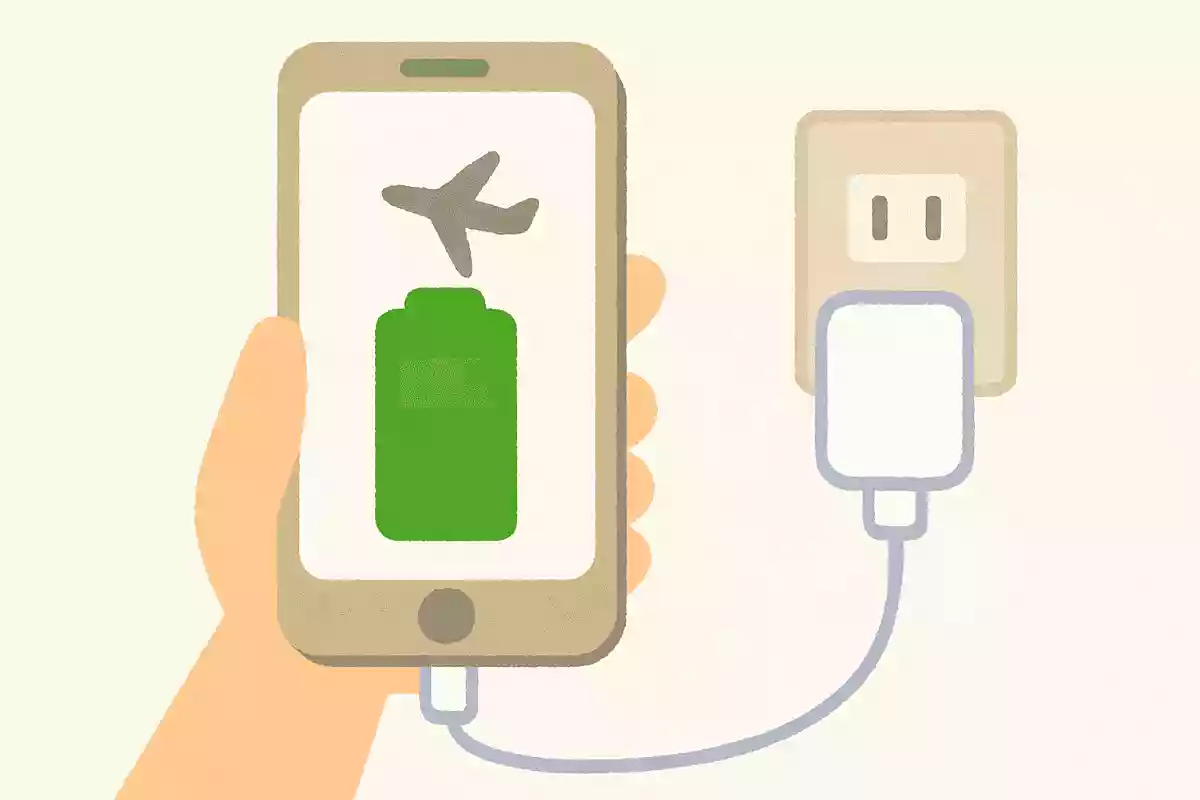
Have you ever had the experience of wanting to charge in a hurry, but the battery just won’t fill up? Here’s a technique to use in those situations: simply switching to Airplane Mode can make charging faster.
This is likely because it reduces data communication and lowers power consumption.
By the way, turning off Wi‑Fi and Bluetooth alone can also have some effect, so give it a try.
As a side note, switching to Airplane Mode is also useful when your battery is about to run out.

The time to open the iPhone box is set to 7 seconds.
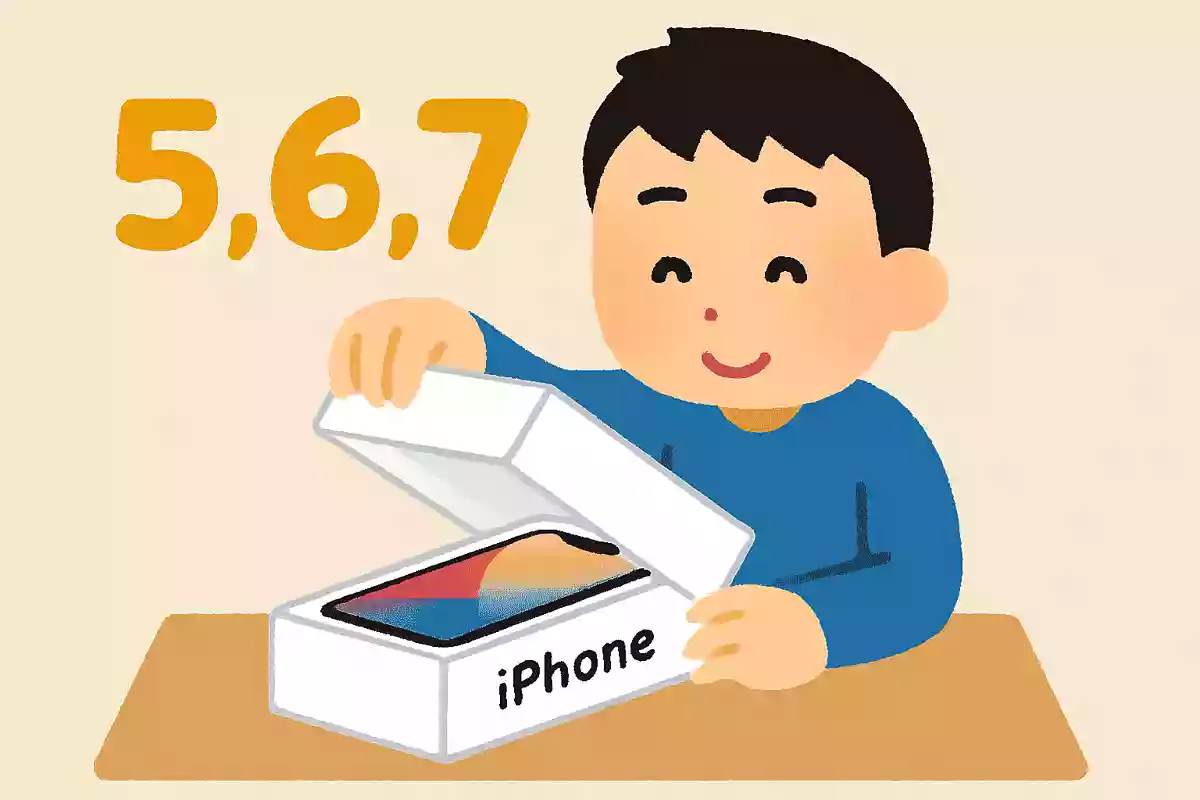
If you’ve ever bought a brand-new iPhone, you probably know what I mean: it takes a little time to open the box.
They say that’s to build anticipation for the first unboxing.
And it’s true—the more you’re teased, the bigger the thrill when you finally open it.
By the way, if you lift the lid and let it open naturally, it takes about seven seconds.
They may have intentionally set it to that lucky number to convey some kind of message.
If you have a box nearby, give it a try.
When you type ‘today’ or ‘this year’, the predictive conversion suggests dates.
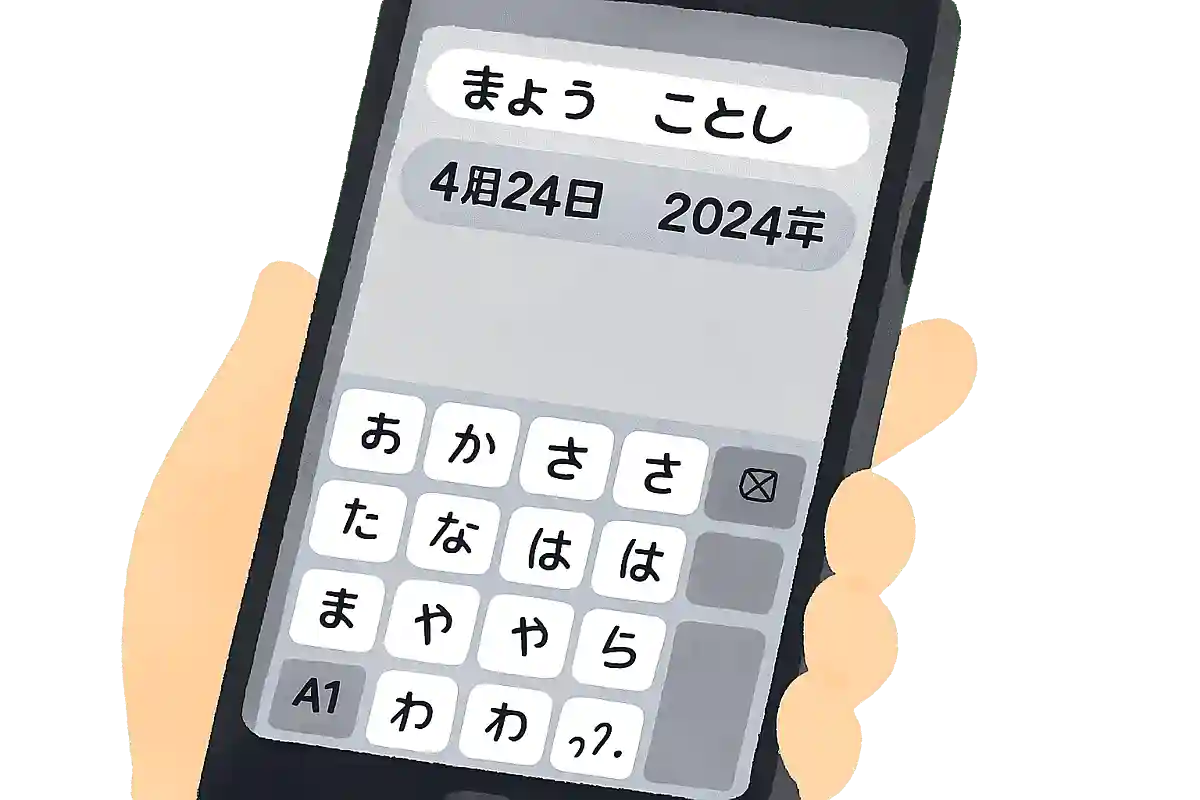
Open your messaging app and try typing “kyou” (today).
You should see suggestions like “MM/DD,” “YYYY/MM/DD,” and “Reiwa X year MM/DD” that represent today’s date.
If you type “kotoshi” (this year), you’ll get conversion candidates like “200X.” Pretty handy, right? By the way, you can even convert just a string of numbers into a date or time.
For example, “1011” can be converted to either “October 11” or “10:11.” It’s a real time-saver, so let’s make active use of it.
When you enter a postal code, the address appears via predictive conversion.
You often have to enter your address—like when shopping online or looking up a place on Google Maps.
In those situations, try entering your postal code.
The address should appear as a conversion candidate.
Using this can significantly cut down your typing time.
By the way, you don’t need to type a hyphen.
Just enter the seven digits, like “1234567,” and it will convert to the address.
Why not give it a try right away?
You can automatically send blocked emails to the trash every time.
https://www.tiktok.com/@propro11234/video/7529848459084549383When you shop online, you get tons of notification emails, right? Some contain important information, but the ones you don’t need can clog your inbox and cause you to miss important messages.
That’s where this feature comes in: it automatically sends blocked senders’ emails straight to the trash.
Open your Mail app, long-press the relevant email, and block the sender.
Then go to Settings → Mail → Blocked Sender Options and select “Move to Trash.” This way, you won’t have to delete them every time!

You can easily create original stickers from images
https://www.tiktok.com/@jk_labo_/video/7284579659893820679Are you familiar with the sticker feature added to iPhones starting with iOS 17? You can cut out a subject from any photo and create stickers that you can use in apps like Messages or Notes.
It’s similar to “stamps” in LINE.
You can also add effects to stickers and even edit photos.
Apparently, in iOS 18.1 you can now use these stickers as emojis.
Unfortunately, it seems they can’t be used in the LINE messaging app, but it’s still nice to be able to create your own stickers and emojis the way you like.
By pressing the space bar on the keyboard, you can move the cursor to wherever you like in the text.
https://www.tiktok.com/@sai_iphone_bennri/video/7535064777865841927When you’re writing emails or text on a smartphone, sometimes you want to move to a different line but can’t get the cursor to the exact spot you want.
Isn’t it frustrating when the cursor doesn’t move the way you expect? On iPhone, you can easily move it by pressing and holding the space bar on the keyboard.
When you long-press, the keyboard turns into a trackpad, and the cursor follows your finger’s movement.
This lets you jump to the exact spot in your text.
Plus, while in that mode, you can tap where the cursor is to create a text selection.
