

[Useful Features] iPhone Trivia and Tips You'll Want to Try

The iPhone is packed with handy features and little tricks that you may have heard of but don’t really know.
From smart ways to use predictive text to tips for fast charging, there are plenty of nuggets that add a touch of convenience to your everyday smartphone life! In this article, we’ll share general trivia and useful tidbits for iPhone users—little things that are nice to know.
We’ve gathered lots of topics to make your iPhone life more stylish, more fun, and more convenient.
You’re sure to discover something that will make you say, “Wow, I didn’t know that!”
- Interesting! A collection of trivia and fun facts about Google
- [Easy Magic] Special Feature: Big Collection of Smartphone Magic Tricks
- Make weather forecasts more fun! Trivia and fun facts about the weather
- Trivia quiz about schools: a roundup of fun facts you’ll want to brag about
- A quiz of fun trivia: bite-sized knowledge that leads to new insights.
- Fun facts you’ll want to share! January trivia and tidbits special
- Fun facts you’ll want to share! A roundup of October trivia and tidbits
- A compilation of unsettling trivia and fun facts about Earth
- [For Kids] January Trivia Quiz & Fun Facts: Learn About the New Year in a Fun Way
- [Interesting] Compilation of Trivia Quiz Questions
- Fun facts you’ll want to share! A special feature on November trivia and tidbits
- Popular around the world! Trivia and fun facts about ONE PIECE
- Little beauty facts you might think you know—but don’t?
[Useful Features] iPhone Trivia & Fun Facts That’ll Make You Want to Try Them (1–10)
You can record the screen as a video.
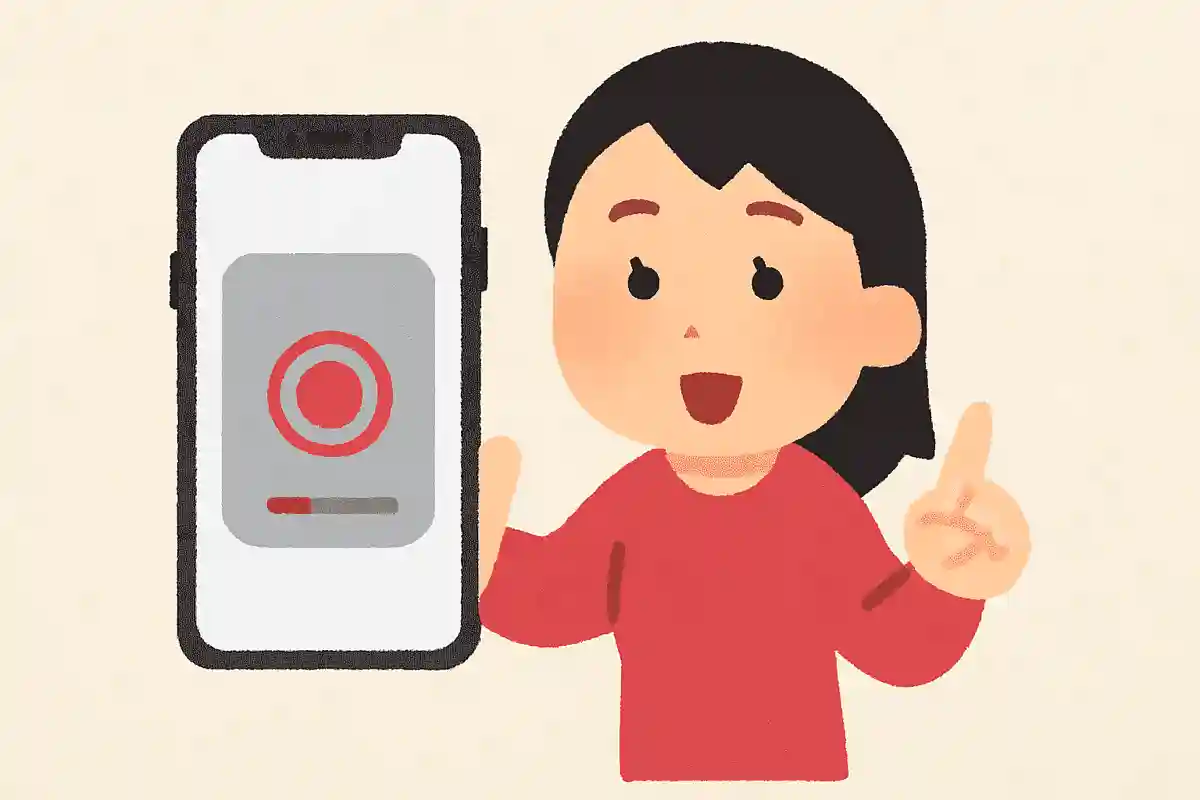
Let’s explain how to record your screen.
First, open Settings and go to Control Center.
You’ll see an option called “Screen Recording” with a plus icon next to it—tap it.
A red recording icon should appear on the screen.
From there, just press it to start recording your screen.
It’s a handy feature when you want to show a friend how to do something or upload your gameplay.
By the way, the recorded video will appear in the Photos app.

You can swipe left or right with three fingers to Undo or Redo.
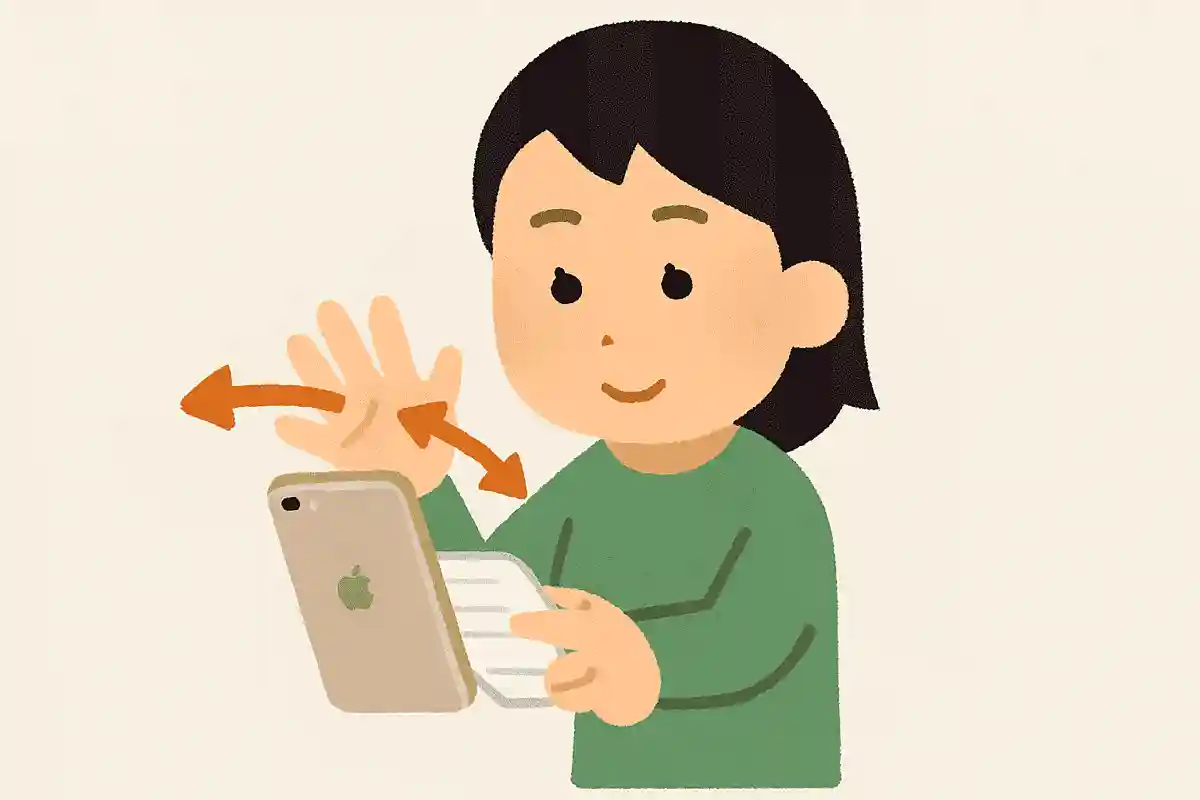
If you often write long texts on your iPhone, there’s a handy trick you should know: swiping left or right with three fingers lets you undo and redo.
It’s basically like pressing Ctrl + Z on a computer.
You can go back through your edit history until you close the app.
By the way, a three‑finger pinch-in copies, a three‑finger pinch-out pastes, and a three‑finger tap opens the editing menu.
Just knowing these will definitely make your workflow smoother.
You can long-press a screenshot to easily attach it to a messaging app.
@sai_iphone_bennri Long-press feature on iPhone#iPhone life hacks#iPhone lifehackiPhone useful features#iPhone time-savingApple
First Love Killer – Noshi
A handy screenshot-drag feature for messaging apps.
When you’re sending messages to friends, family, or a partner, you sometimes send images too, right? If you long-press the screenshot you just took and slide it to an app like LINE, you can send the image as is.
You don’t have to take a screenshot, tap the image, attach it to a message, and then select the person you want to send it to.
Since you can send screenshots so easily, your message exchanges are bound to get even more fun.

[Useful Features] iPhone Trivia & Tips That’ll Make You Want to Try Them (11–20)
Even on models without a Home button, you can display a Home button on the screen.
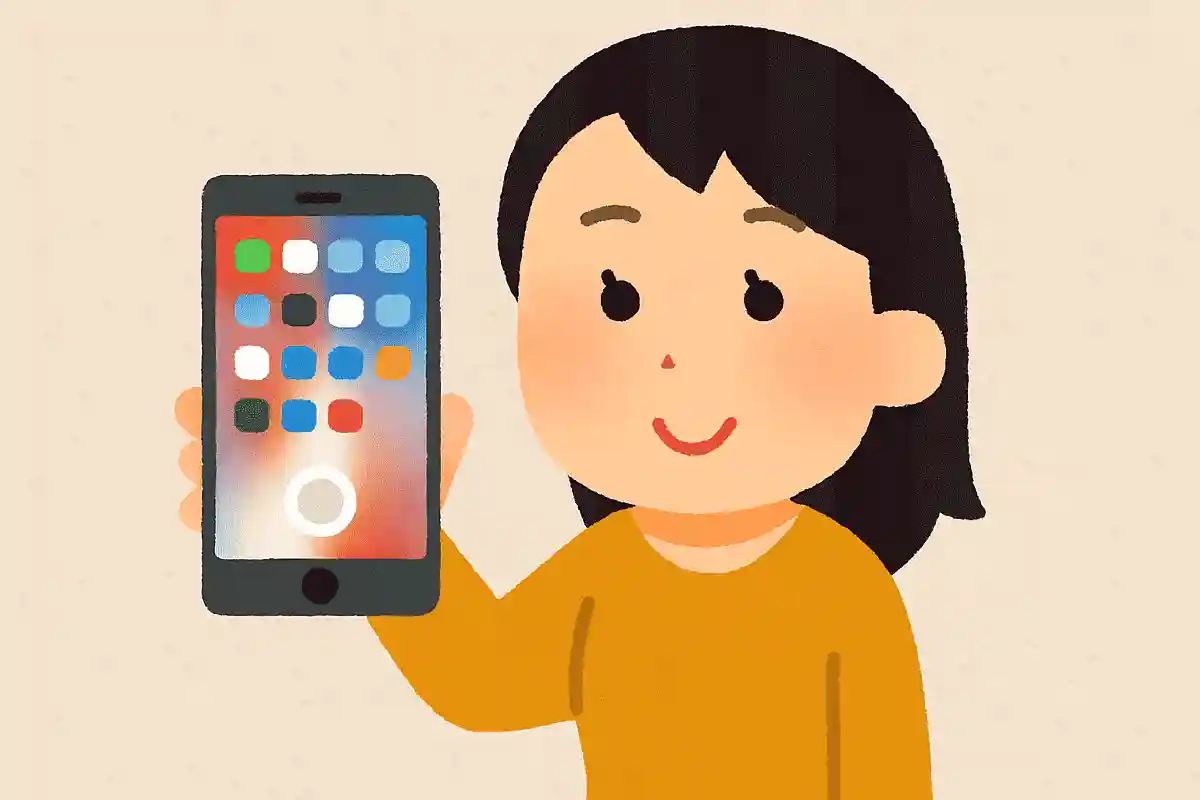
Starting with the iPhone X, the Home button is gone.
Here’s a handy tip for those using models with a Home button or if your Home button breaks.
If you want to display a Home button on the screen, you can enable it in Settings.
Open the Settings app, tap Accessibility.
Choose Touch (the hand-shaped icon), and you’ll see an option called AssistiveTouch.
It’s off by default, so turn it on, and a Home button will appear on your screen.
You can record phone calls and transcribe them into text.
@kaeru_iphone Did you know you can record phone calls on an iPhone?!#iPhone life hacks#iPhone hacks#iPhone useful features#iPhone recording
♪ Yes, gladly — Kent from this side
Starting with the iPhone 11 and later models, there’s a feature that transcribes your phone calls.
It’s stressful when you get an unexpected call with important information and can’t take notes, right? During a call, press the button at the top left of the screen to open the call recording screen.
Tap “Continue” to start recording.
The recording is saved to Notes, and a transcription of the call is saved as well.
Having it in text makes it convenient to share with others via the Messages app or email.
You can take burst shots by long-pressing the camera’s shutter button and swiping it to the left.

Are you familiar with Burst Mode on the iPhone, which lets you take rapid-fire shots? In the Camera app, slide the shutter button to the left.
If you keep holding it there, it switches to Burst Mode and takes continuous photos.
It will keep shooting for as long as you hold the button.
You can review the images in the Photos app, where they appear grouped together.
The set will show “Burst” along with the number of photos captured.
It’s perfect for capturing action scenes without missing the moment, like sports or a child’s changing expressions.
The weather app lets you see all kinds of information, such as sunrise and sunset times and atmospheric pressure.
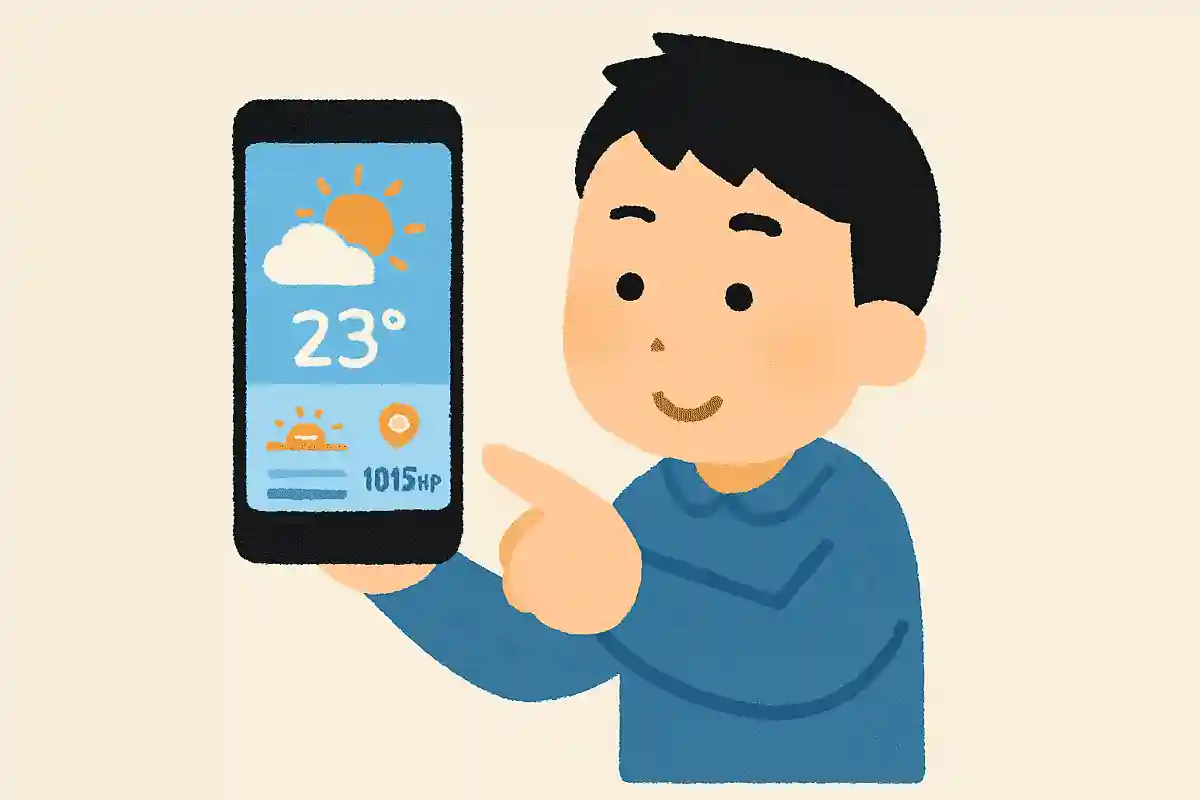
Do you use a weather app? In addition to the day’s weather, it can show temperature, humidity, chance of precipitation, and even sunrise and sunset times, as well as barometric pressure.
It’s no exaggeration to say you can find out everything about the climate.
To add more, the app also lets you check the dew point, “feels like” temperature, wind direction and speed, UV index, and pollen information.
Knowing and checking these the day before can help with managing and maintaining your health.
By the way, even if you don’t use an iPhone, you should be able to get the same information with similar apps.